Merging Unomi profiles based on a property
Newsletter
In this example we will set up Unomi to merge the profiles of visitors who use the same email address when subscribing to the newsletter.
Snippet
We use this snippet to check if an email field is found on the newsletter page, and if it does, it will use the email address the visitor gave in as the merge identifier for Unomi when the subscribe to the newsletter button is clicked:
<script>
    // enable namespace that handles the queue and methods
    window.dsdc = window.dsdc || function () { (dsdc.q = dsdc.q || []).push(arguments) }; dsdc.l = +new Date;

    // merge profiles
    var getCaptureHandler = function (data) {

        // temporary store our capture data & potential merge value
        var changedCapture = data.requestData;

        // get the element of which you want to use the value to merge your Unomi profiles on
        var myMergeElement = document.getElementById("mauticform_input_newsletternl_email"); // email field on the newsletter page

        // if this element was found on the current page
        if (myMergeElement !== null && typeof myMergeElement != "undefined") {
            // get the value of this element
            myMergeValue = myMergeElement.value;

            // append the property to the capture if any found and event is a form submit
            if (myMergeValue !== null && typeof myMergeValue != "undefined" && changedCapture.event.eventData.te__activity == "form_submit") {
                // add the merge property to the capture data under the key te__mergeIdentifier_1
                changedCapture.te__mergeIdentifier_1 = myMergeValue;

                // send the changed data back to the main script
                dsdc.updateCapture(changedCapture);
            }
        }
    }

    window.dsdc('beforeRequest', getCaptureHandler);
</script>
Test
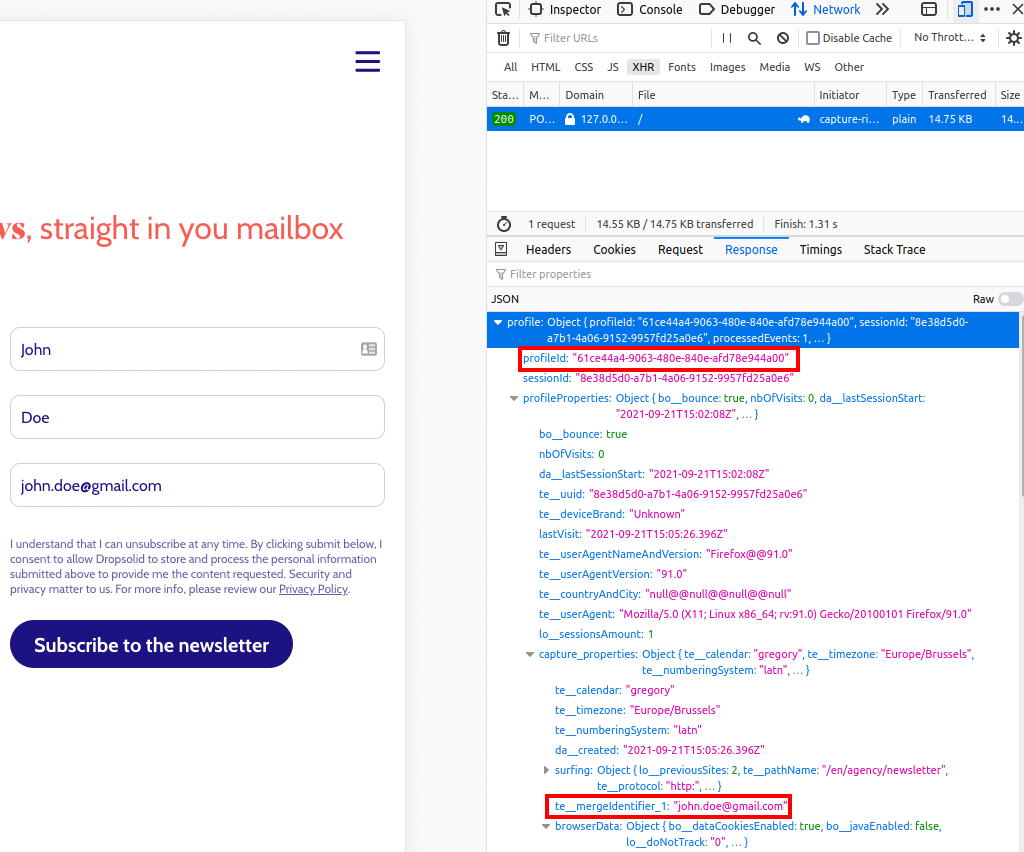
We go to the page where visitors can subscribe to the newsletter and we fill in our email address, first and last name.
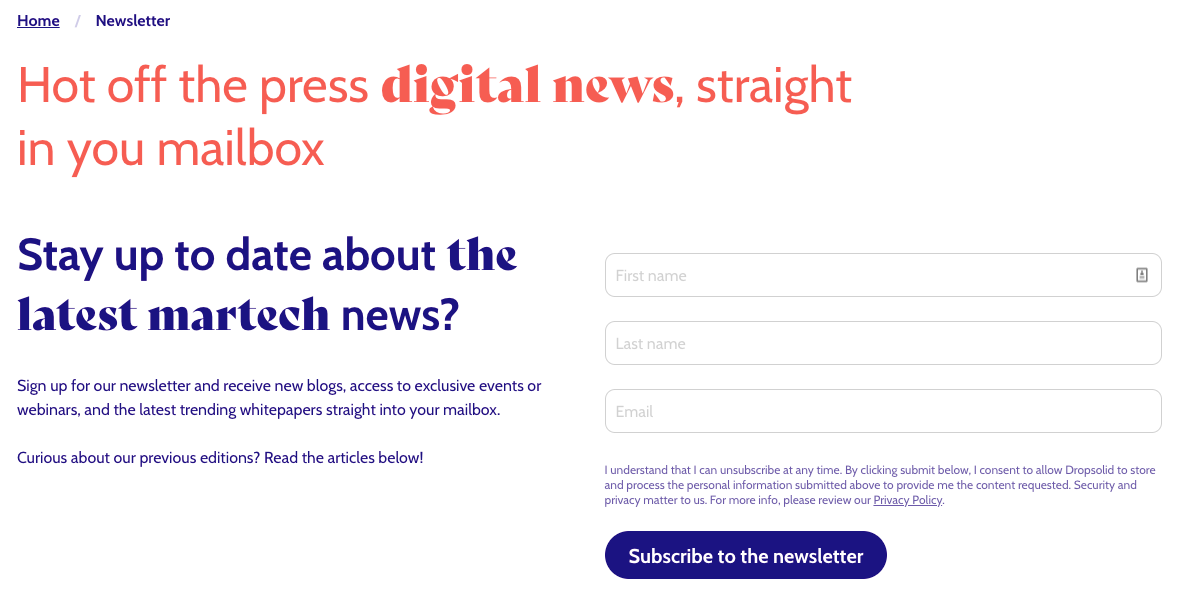
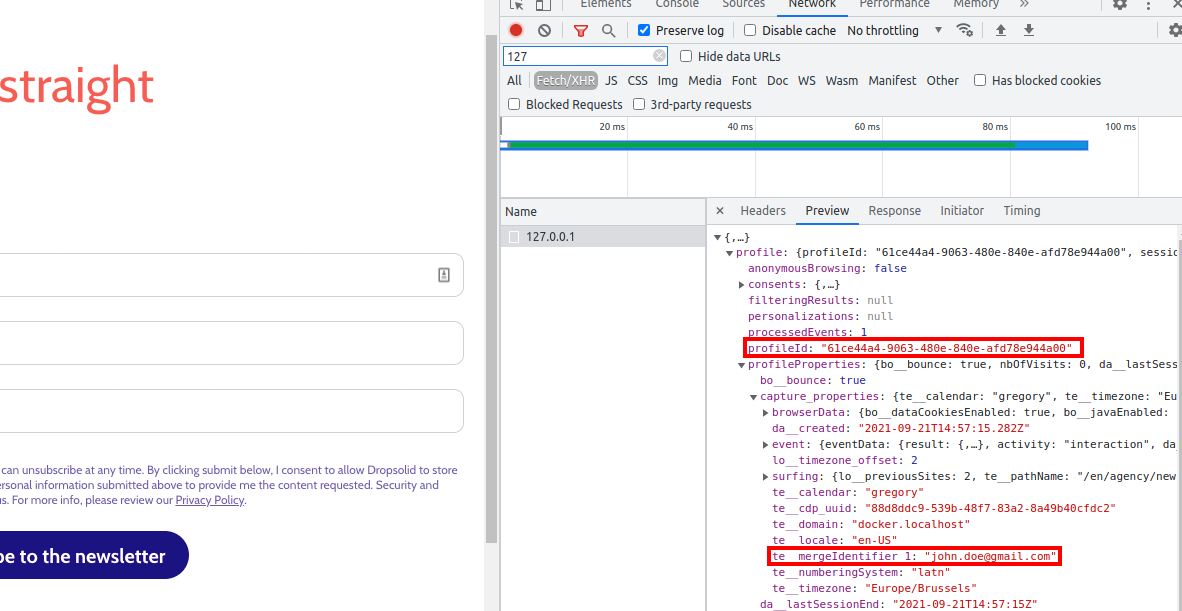
We click on the subscribe to the newsletter button and then we inspect the page. In the network tab we see the capture data that was sent to Unomi and the profile it returns in response. We see our PC visitor has the profile id 61ce44a4-9063-480e-840e-afd78ec944a00 and Unomi has the email address we gave in as the merge identifier.
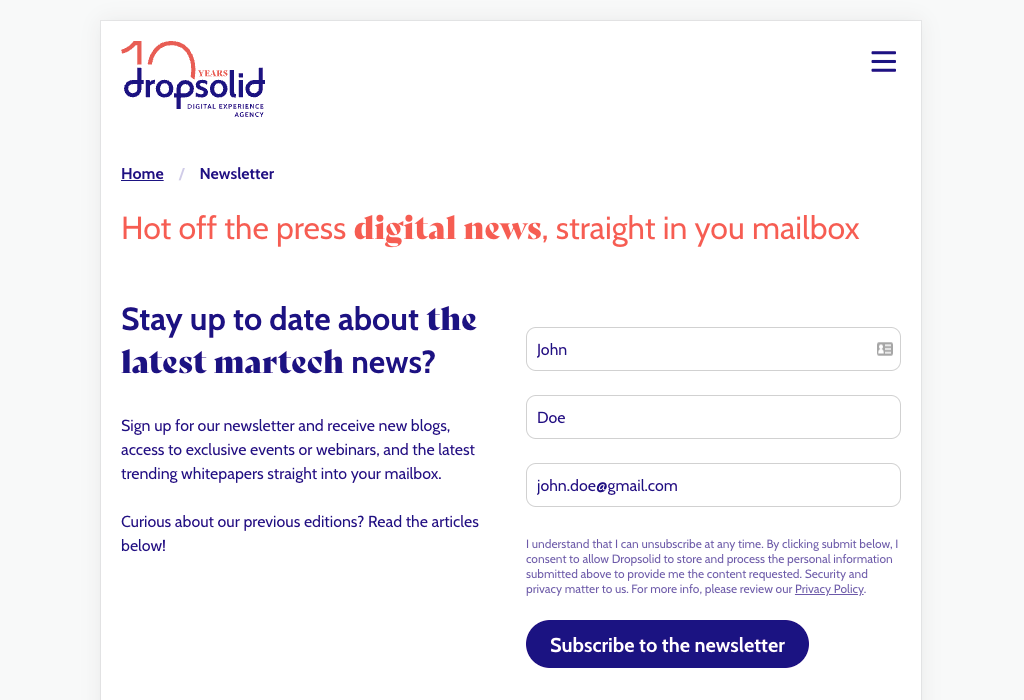
Next, we visit the same newsletter page on a tablet. The site does not know we are the same visitor as on the PC. We fill in our email address, first and last name.
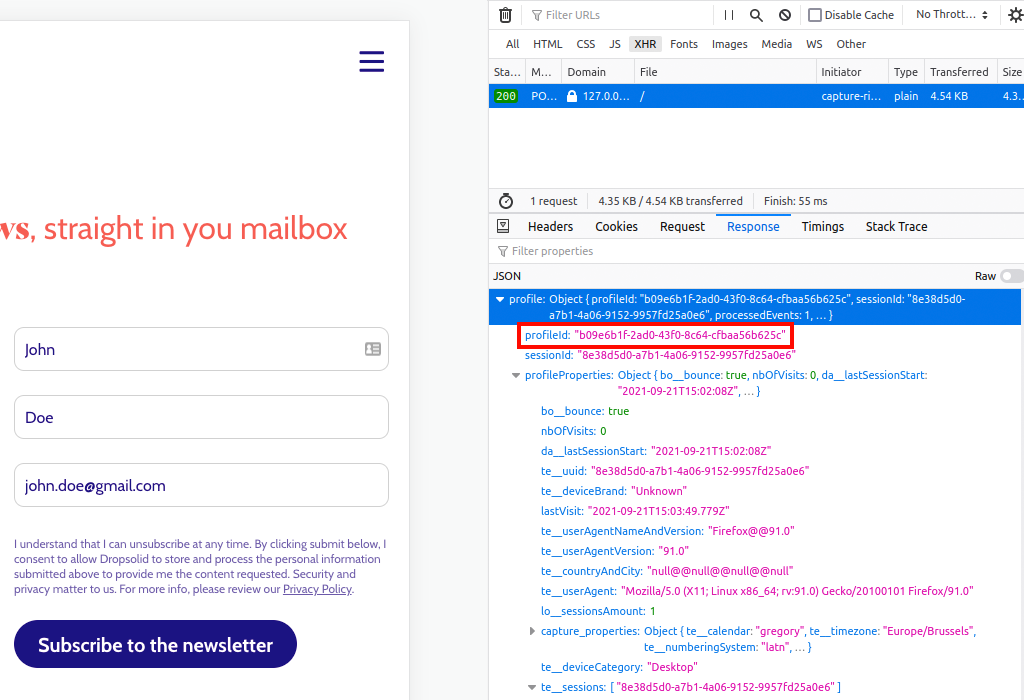
We inspect the page before clicking on the subscribe to the newsletter button. In the network tab we see the capture data that was sent to Unomi and the profile it returns in response when we went to the newsletter page. We see our tablet visitor has the profile id b09e6b1f-2ad0-43f0-8c64-cfbaa56b625c, so Unomi views the tablet visitor as a different person.
We click on the subscribe to the newsletter button and then we inspect the page again. In the network tab we see the capture data that was sent to Unomi and the profile it returns in response. We see our tablet visitor has the profile id 61ce44a4-9063-480e-840e-afd78ec944a00 and Unomi has the email address we gave in as the merge identifier.
This means Unomi recognised a profile already exists with the same email address, so it merged the profile of the tablet visitor into the profile of the PC visitor.
The digital journey can now be continued as the same person across different devices!