Platform FAQ
How do I set up two factor authentication for my account?
How do I set up two factor authentication for my account?
What is TFA
Two-Factor Authentication (2FA or TFA) is an additional layer of security on your Digital Experience Platform account. When TFA is enabled for your account, an extra step is added to the login process. You’ll be required to enter a code from an external authentication app in addition to your password.
Why enable it
Enabling TFA means that even if your regular password is ever compromised or stolen, only you can log into your account, because only you have the authentication code.
How to enable TFA for your account
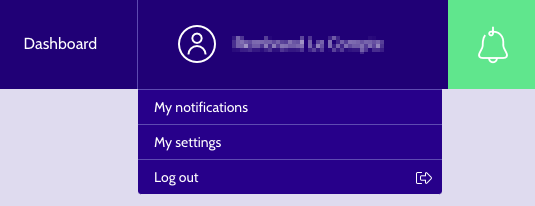
By navigating to 'User settings' using the dropdown in the top right corner, you will be taken to the account portal.
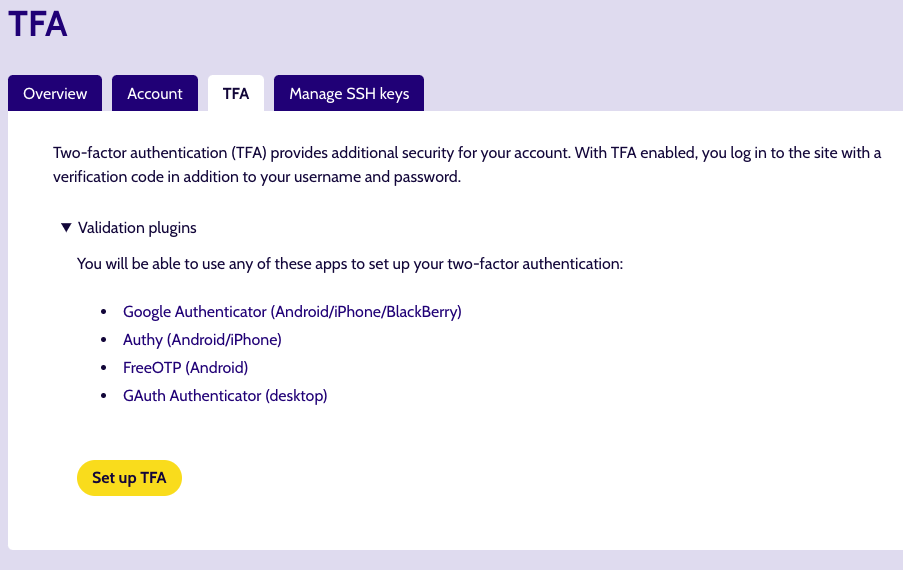
There, you can click on the 'TFA' tab to check the status of your Two Factor Authentication setup.
To enable TFA for your account, click the 'Set up TFA' button, then enter your account password when prompted.
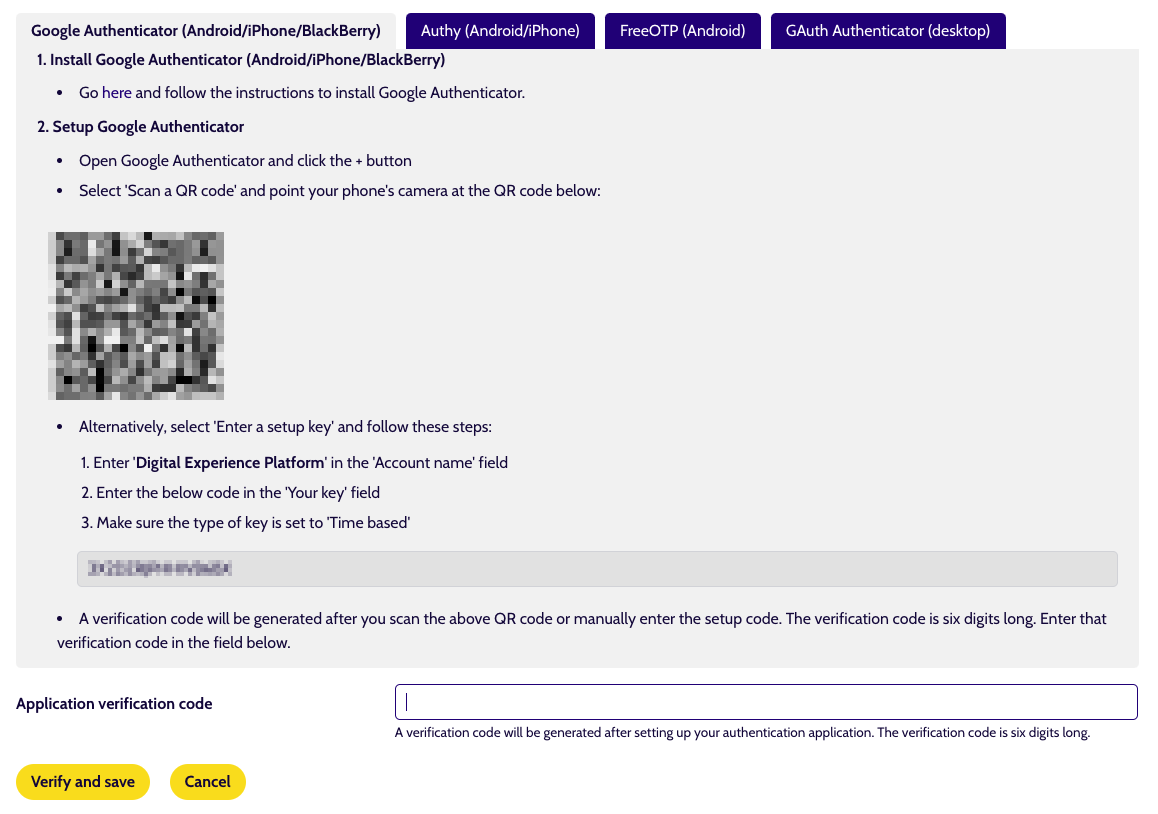
Afterwards you can select between 4 types of TFA applications to set up. Choose your preferred app and follow the on-screen steps to set it up.
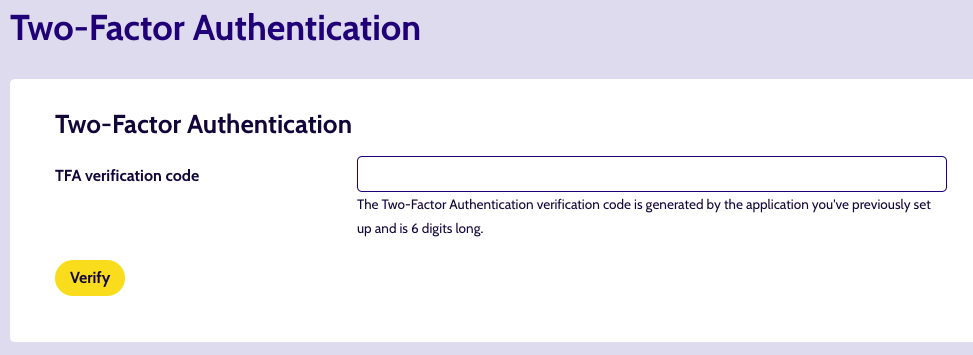
Once you have done so, upon logging in to the Digital Experience Platform you will be asked to provide an additional code which you will find inside the TFA app you set up previously.
How to reset TFA for your account
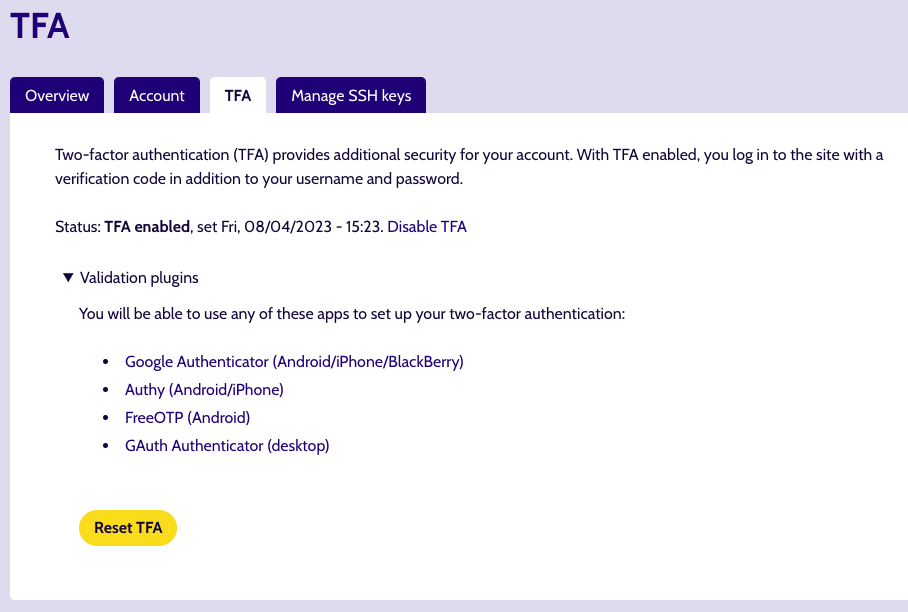
Navigate back to 'User settings' and then 'Security'. There you can view the status of your TFA setup and can, if already set up, reset your TFA app. To do so, click the 'Reset TFA' button and follow the same steps as you did for setting it up.
How to disable TFA for your account
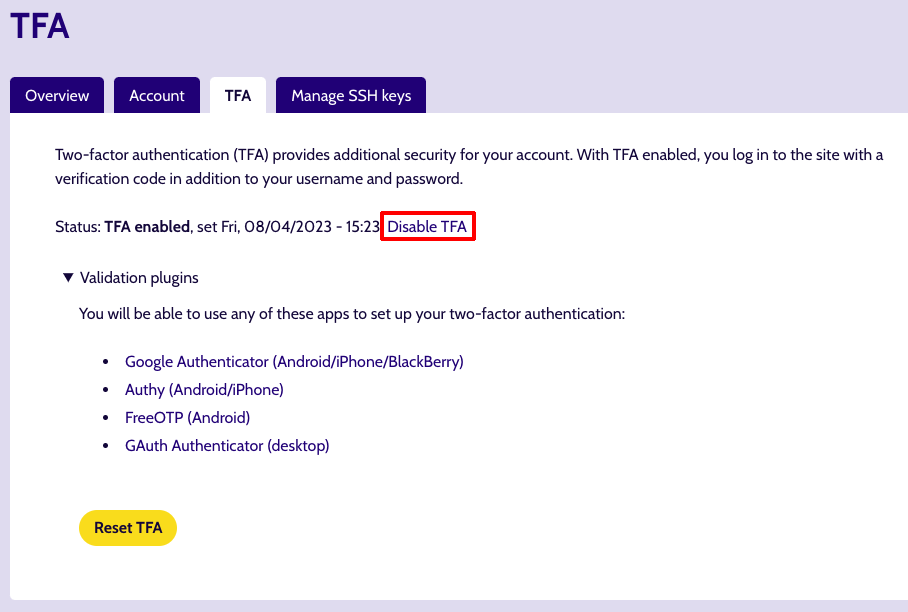
Navigate back to 'User settings' and then 'Security'. There you can view the status of your TFA setup and can, if already set up, disable Two-Factor Authentication. To do so, click the 'Disable TFA' link and re-enter your current password to confirm.
What to do when you've lost your phone
If you have lost your phone or can no longer provide a TFA token when logging in, please contact support@dropsolid.com.
How do I manage my SSH keys?
How do I manage my SSH keys?
What is an SSH key
An SSH key is an access credential in the SSH (secure shell) network protocol. Its function is similar to that of user names and passwords, but the keys are primarily used for for remote communication between machines on an open network.
For example, with the Platform, it is used to identify users who want to fetch a Project onto their computer for local development or to identify users with access to an Environment server.
We often talk about an SSH key pair, because it actually uses 2 keys: a public and a private key. The public key can be distributed (it's what you store in your managed keys) but the private key is stored on your machine and should never be shared.
How to generate an SSH key
Before you can add an SSH key pair, you first have to generate it. There are multiple SSH key types but RSA gives us the most compatibility, so that's the format we recommend at moment of writing.
Information on how to create an SSH key pair can be found here.
How to add an SSH key to the Platform
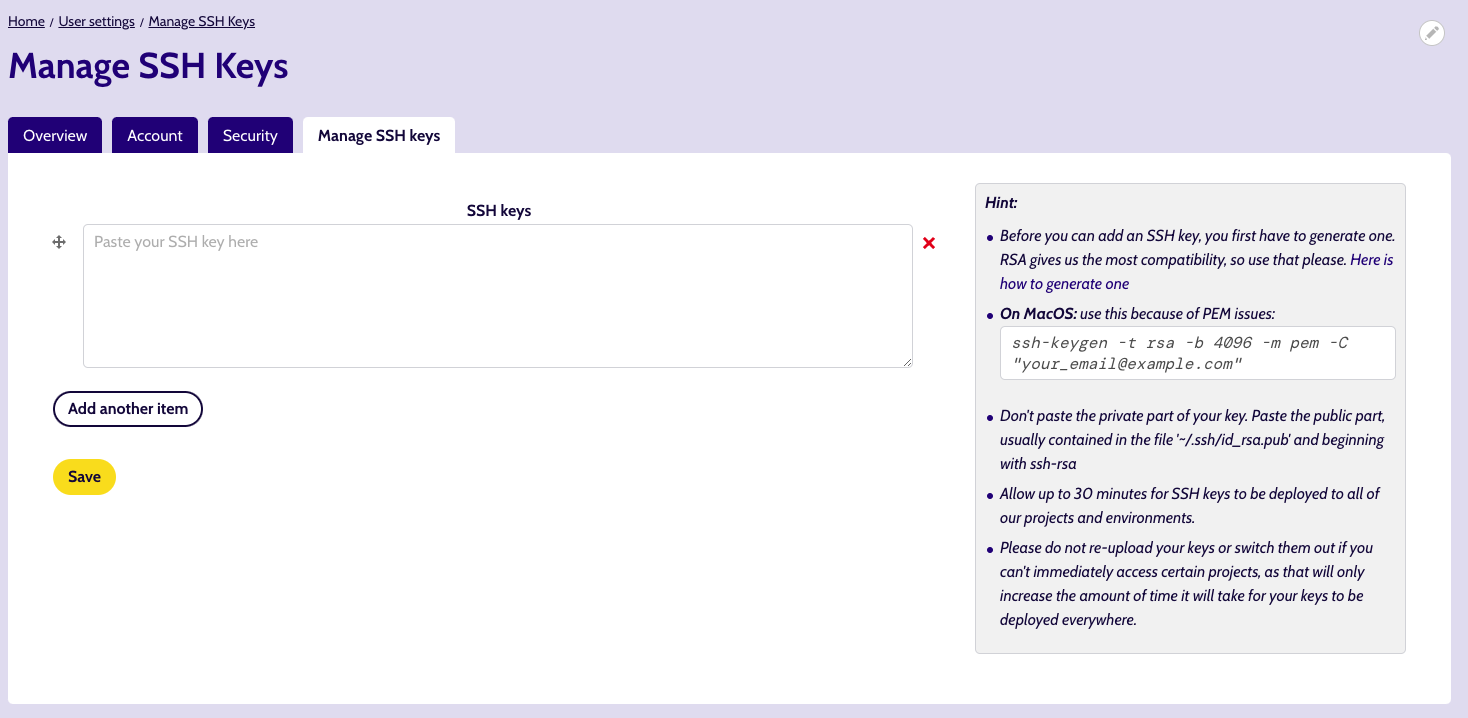
To add the public key to the Platform, navigate to your Settings page, via the dropdown menu under your user name, in the header.
There you will find a ‘Manage SSH keys’ tab. As mentioned before, you need to have generated a key on your machine, which you need to paste & save using this form. Some important information is provided on the page to make the process go smoother.