Environment: Detail
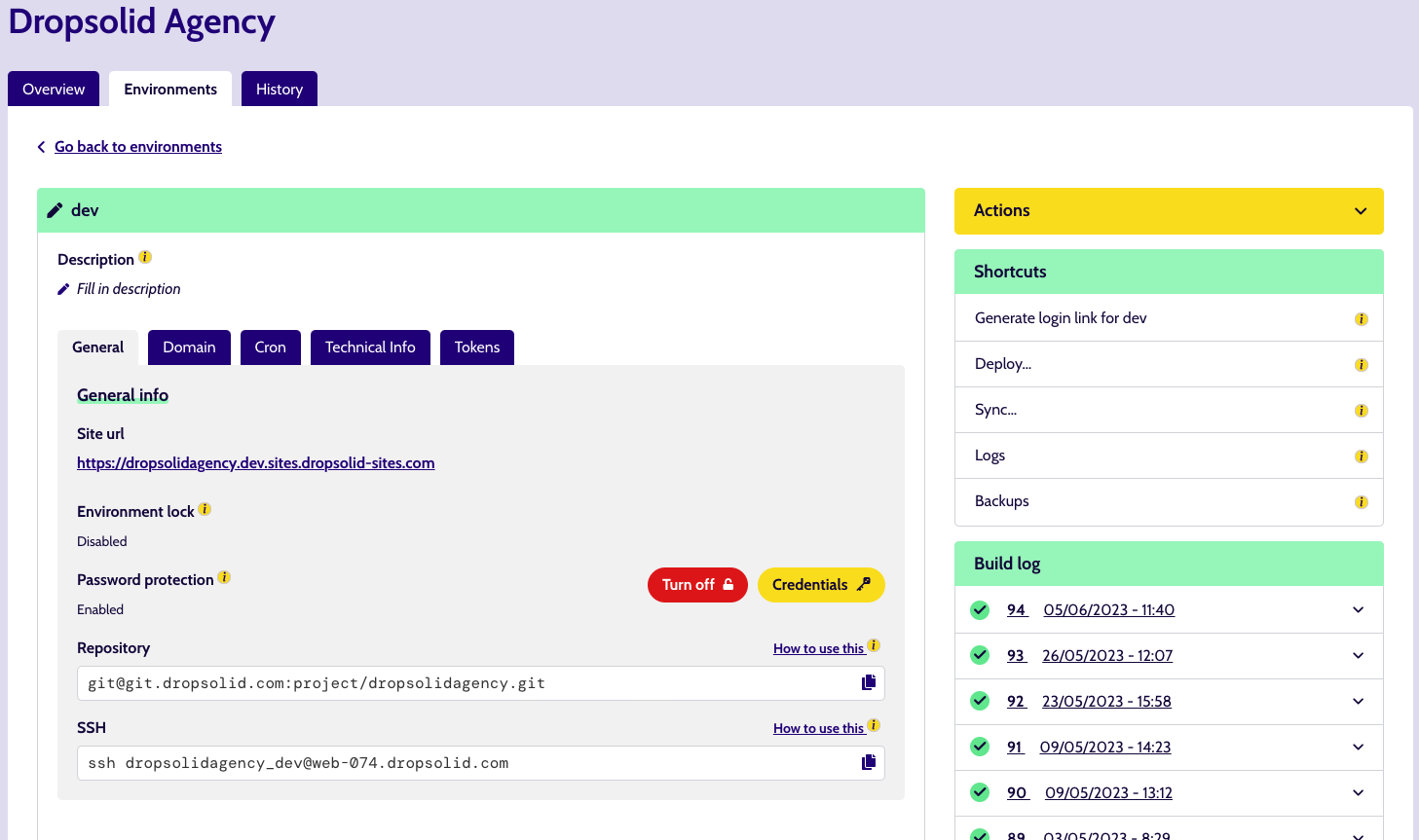
Once you click through an Environment card, you will get a view very similar to the Project detail itself, including a variety of subtabs.
General
Things like the url to surf to, password protection (and the credentials for htpasswd), repo url and SSH command (if you need to access the server).
Warning
Regarding password protection: some projects have a custom solution (eg. so the API isn’t password protected by the platform protection, but the “regular site” is.
Domain
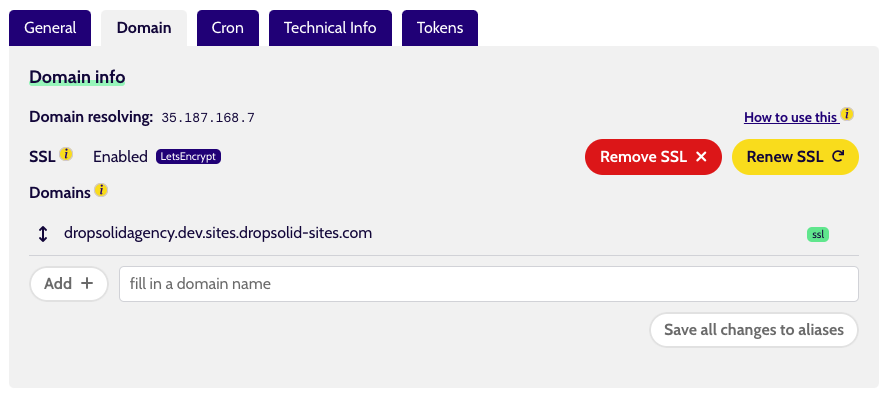
Here you can manage your SSL, as well as add/remove domains. Info related to these functionalities (eg. set up domains, DNS, …) can be found when clicking the info-icons.
Cron
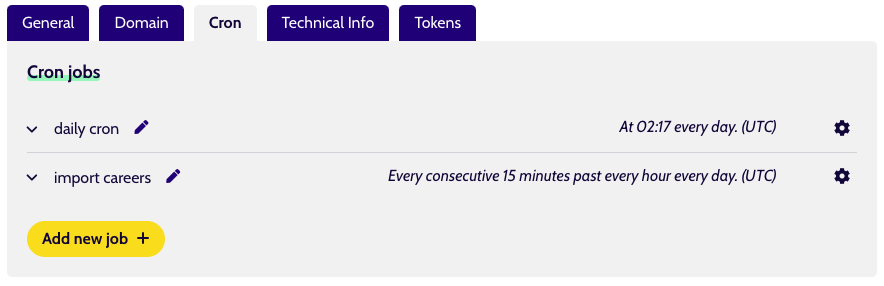
Manage your cron jobs here, see which ones are active and when they run.
Important to note is that they will run for the first time when they are added.
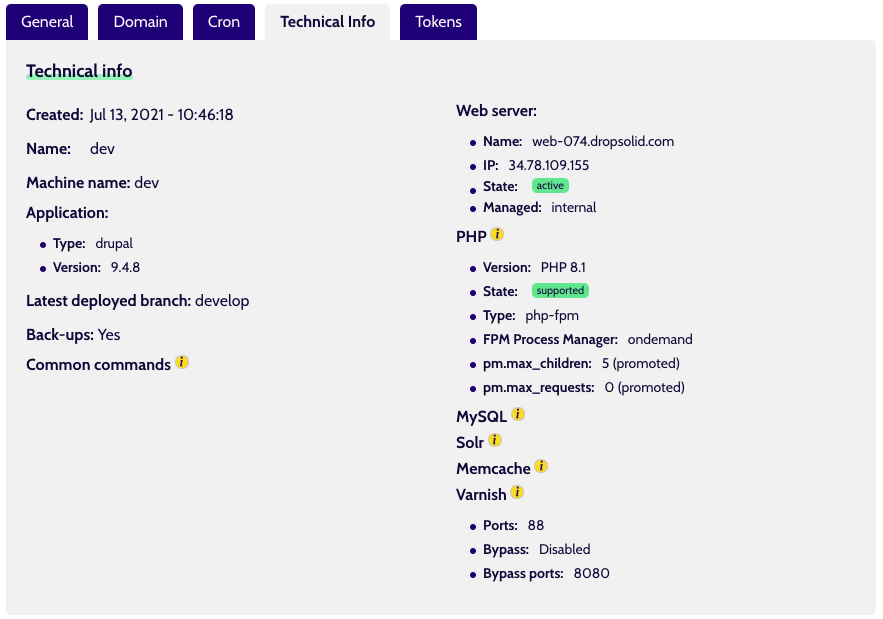
Technical info
All manner of information that is useful to know how the environment runs. What services does it use? What type of application is it running, …
As a bonus, Drupal projects also have a Common Commands item, which tells you how to use Drush aliases to connect to the environment and, for example, sync files or the database.
Tokens
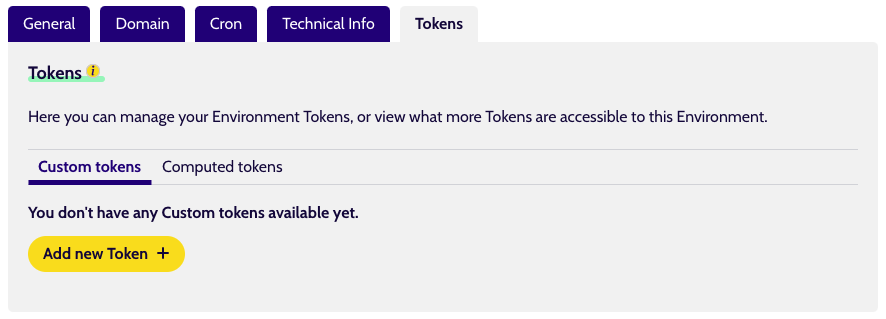
Exactly what Tokens are and how they are used, can be found in the support pages (as linked from the component as well).
We have 2 categories here:
- Custom tokens: the ones you add to this environment
- Computed tokens: includes the tokens inherited from the Project and other places and that are available for this environment.
Backups
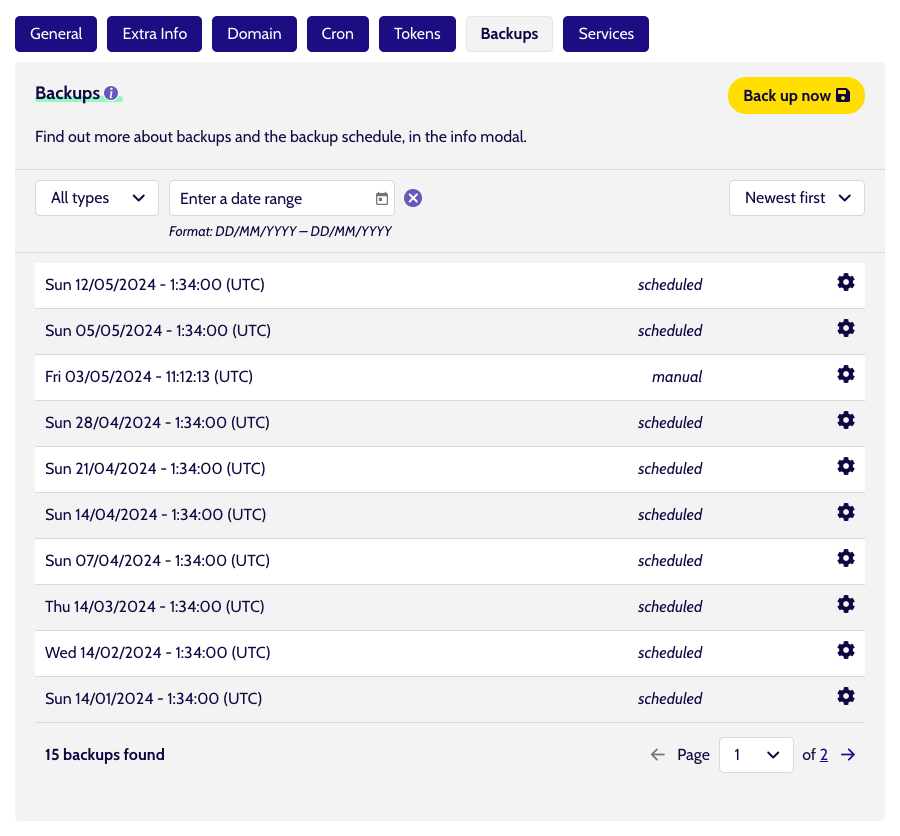
Any Environment that supports backups has a Backups tab, which displays a list of all available backups. (If you don't have the correct viewing permissions, this item will be greyed out)
Using the filters at the top, you can find all available backups of a specific type and for a specific date range (or date).
There are 2 types of backups:
- Scheduled backups: these are made using (locked) Cron jobs and the schedule and retention info can be found by clicking the Info-icon by the Backups title. Usually, there are daily, weekly, monthly and yearly backups to be found.
- Manual: if you have the right permissions, there is a Back up now button you can use to trigger a backup on demand
Find more info about how to use the Backups in this section.
Services
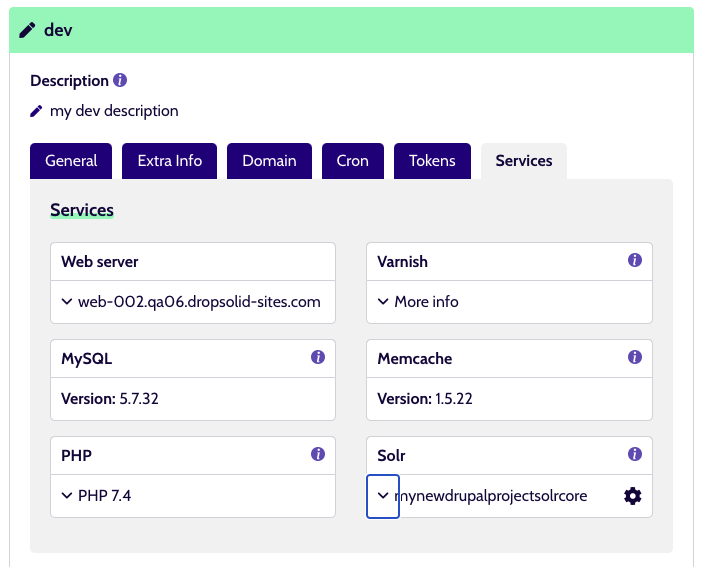
This will show you various services available for your project.
You can find practical info about them in here.
Sidebar
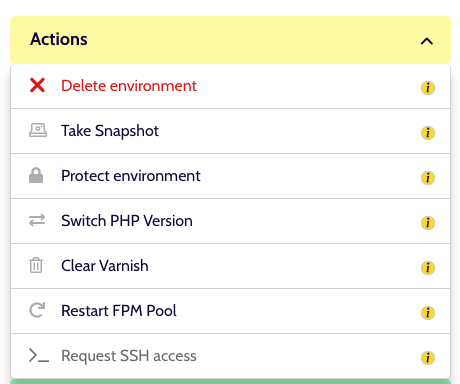
Actions
For the sidebar Actions, these have a lot more in them. What these all do, can again be read by clicking the info-icon at the right end of each item.
One important Action, is ‘Request SSH access'. This one is used to gain access for Production environments (as explained on our support site). The other environments should be accessible for you by default, if you use the SSH command provided in the 'General’ tab.
Shortcuts
The sidebar Shortcuts are roughly the same as on the Project detail:
- Generate login link
- Deploy
- Sync
- Logs (eg. Apache, Nginx, FPM, …)
- Backups
Latest build / Build logs
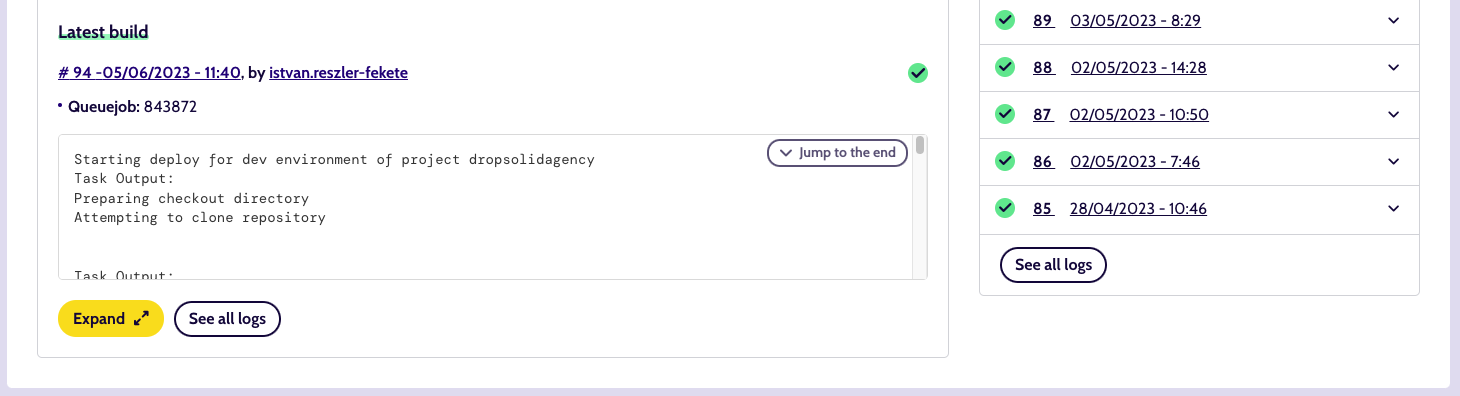
When you use the ‘Deploy’ Shortcut, a notification will pop up to tell you the Environment is being deployed. But if you want more information on what is going on, you should keep an eye on this section. This will show and update a log, which you can follow along with, and give you extra information such as: which commits are being deployed, who made them, …).
Past logs can also be accessed using the ‘Builds’ component in the sidebar. Each of the entries has its own detail page, with the complete log.