Drupal content in Mautic
Using a combination of our Drupal module “Mautic Content Provider“ and our Mautic plugin “Drupal Integrated Content”, you can directly show the content of our Drupal website inside our Mautic emails.
Drupal setup
- Enable the “Mautic Content Provider“ module.
- Configure the options for showing single nodes at /admin/config/services/mautic-content-provider.
Info
This will allow selecting which node types are available and in which view modes. Allowing the set up of Mautic specific view modes that have email-optimised output.
- Optionally, set up a view for displaying dynamic content in emails.
- Create a new view in Drupal and make sure to add a “Mautic email display” display.
- Configure the view to show whatever content you like.
- Remember to add a language filter in case of multilingual setup. The Mautic plugin will allow us to select a current language for displaying, so we can use the current interface language.
Info
You can use any Views functionality you normally would like headers and footers and rendering nodes view modes, but remember to keep your output email friendly.
Mautic setup
In order to be able to reach Drupal content, Mautic will need to be able to connect to the Drupal site. This connection must be configured on the Plugins configuration page (/s/plugins).
Select the “Drupal Integrated Content” plugin and enter your website address.
Info
By default, only public content will be available. However, authentication methods were added to enable more complex setups with websites and / or content that is not publicly available.
Mautic will need its API enabled (and if needed, basic authentication also enabled) in its API Settings on /s/config/edit.
Showing a single node in Mautic
- Create any content in Mautic (e.g. an email) and go to the content builder.
- In the Blocks section of the sidebar, there will be a “Drupal Integrated Content” block
- Use this block to add Drupal content.
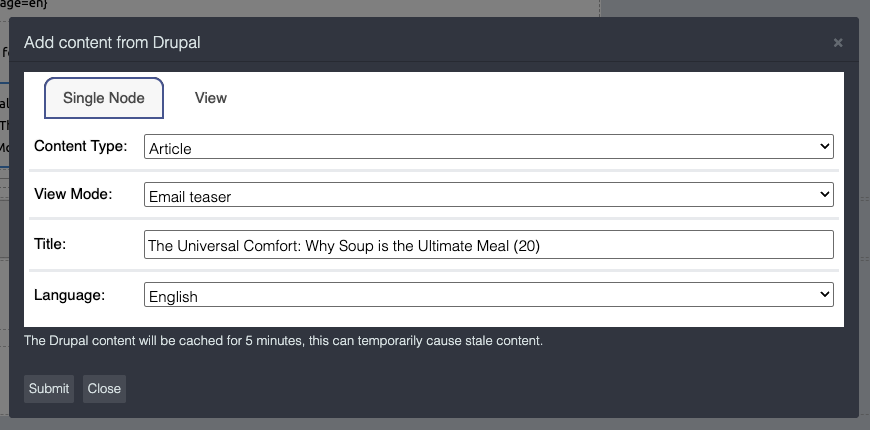
- In the block configuration, our configured node types and view modes will be selectable, and we can choose a node by using the autocomplete-enabled “Title” field.
Info
The language selection will determine the language in which the node will be rendered.
- Submit the block configuration and save the email. The selected node will now be shown in your emails (try a preview to see the result).
Showing a view in Mautic
- Create any content in Mautic (e.g. an email) and go to the content builder.
- In the Blocks section of the sidebar, there will be a “Drupal Integrated Content” block
- Use this block to add Drupal content.
- In stead of selecting a Single Node, navigate to the View tab.
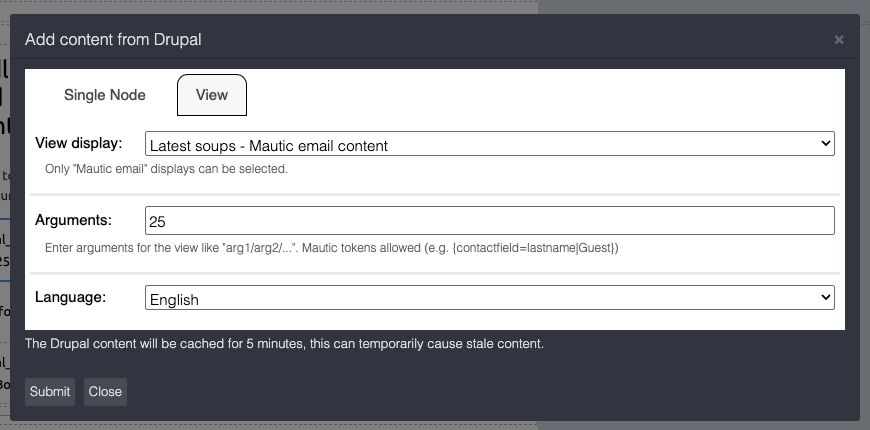 Any View display with the “Mautic email display” type will be selectable.
Info
Views arguments can be used as you would in the views preview. Mautic tokens will be replaced and can be used to further personalize your content, e.g. based on your contact fields.
- Submit the block configuration and save the email. The selected view’s output will now be shown in your emails (try a preview to see the result).
Info
Mautic’s preview allows selecting a contact, which allows for testing truly personalized content with replaced Mautic tokens.