Force link color in Mautic emails
These steps allow you to override the default link color in your Mautic emails and set it to a specific color of your choice, while still preserving button colors. It's useful for maintaining brand consistency over different email clients.
Note
You’ll need the hex color code for your desired link color
Steps
- Create a new email or open an existing one to edit in Mautic.
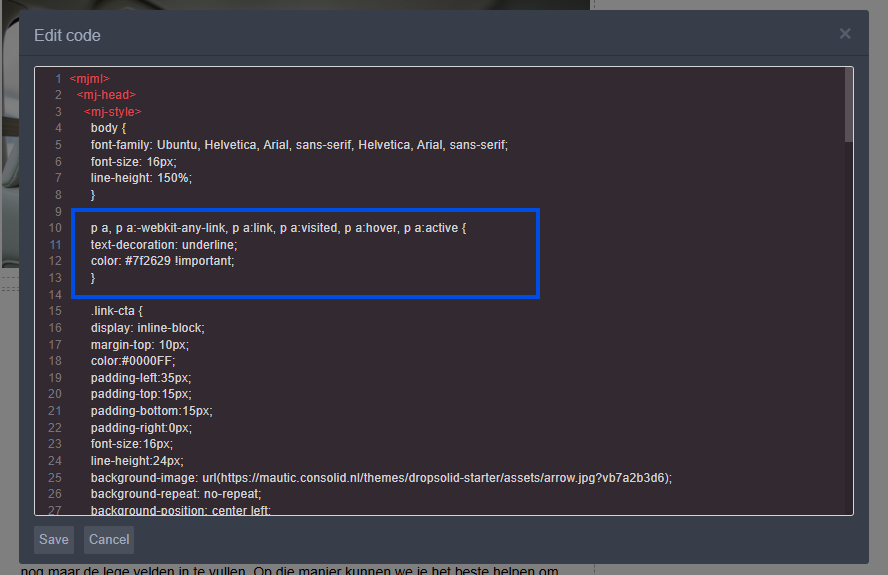
- In the email builder, click to edit the email in Code Mode.
- Locate the
<mj-style>tag in the email code. - Add the following CSS code inside the
<mj-style>tag:p a, p a:-webkit-any-link, p a:link, p a:visited, p a:hover, p a:active { text-decoration: underline; color: #7f2629 !important; } - Replace the hex color
#7f2629in the code with your desired link color. - Save your changes.
Warning
Since this approach forces a color, your links can look bad when someone uses their system in a dark mode.
Results
- All links within paragraph text will display in the specified color
- Button colors will remain unaffected
- The links will maintain the forced color even if a subscriber's email client has a default link color set
Info
Consider using your brand's primary color for links to create a cohesive look. Just make sure it contrasts well with the email background for accessibility. You can also use a:hover to define a different color for when subscribers hover over the links.