Manage your environment's maintenance page
Overview: when is the maintenance page displayed?
Your application can display a static HTML maintenance page instead of the live
application. This feature is used in two primary scenarios:
- User-Controlled Maintenance: You can manually activate this page during
operations like code deployments, data migrations, or other scheduled
maintenance. - Platform-Controlled Maintenance: The platform automatically displays this
page during critical server maintenance or software upgrades.
Note on High Availability (HA): Environments configured for High
Availability will not show the maintenance page during platform-controlled
maintenance, as these updates are performed without downtime.
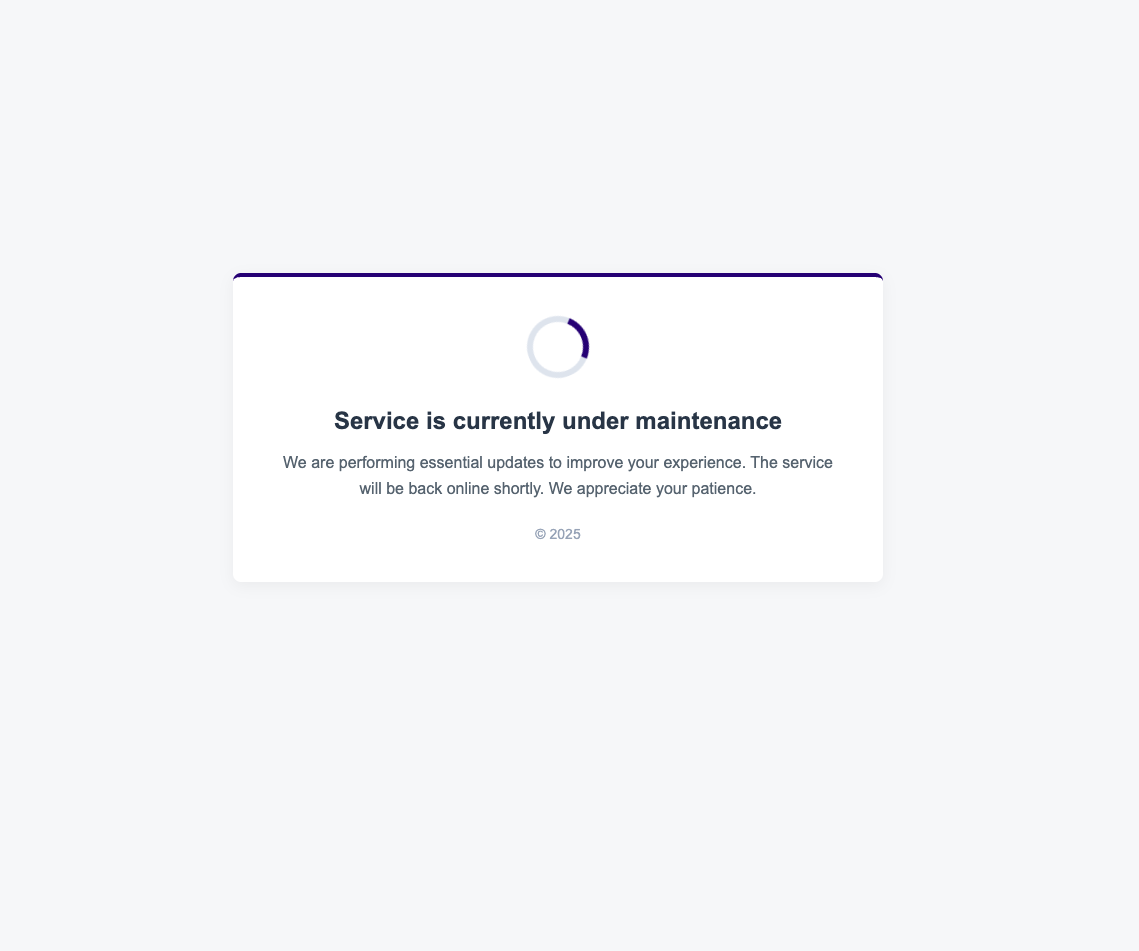
Default maintenance page
By default, the platform displays a generic maintenance page when activated:
Creating a custom maintenance page
You can override the default page by providing your own maintenance.html file.
To be recognized by the platform, your custom page must meet the following
requirements:
- File Location: The file must be placed in your git repository in the default branch at:
/.dropsolid/maintenance/TARGET_ENVIRONMENT/- Replace
TARGET_ENVIRONMENTwith the name of the specific environment (
e.g.,dev,stage,live). - This file does not need to be deployed to the target environment, our system will grab the file from the git repository directly.
- Replace
- File Name: The file must be named
maintenance.html. - Content Constraints: The page must be a self-contained HTML file.
- Why? This is critical because the maintenance page cannot depend on
other application resources (like your site's CSS or JS files), as those
resources may be unavailable during a deployment or maintenance event. - How to include assets: All assets (CSS, JavaScript, images) must be
either:- Inlined: Placed directly inside the
maintenance.htmlfile. - Hosted Externally: Loaded from a non-Dropsolid service, such as a
public Content Delivery Network (CDN) or other external server.
- Inlined: Placed directly inside the
- Why? This is critical because the maintenance page cannot depend on
Activating the maintenance page
Activating and deactivating the maintenance page is controlled through the
platform's user interface.
This can be managed via the Platform Actions (in the sidebar).
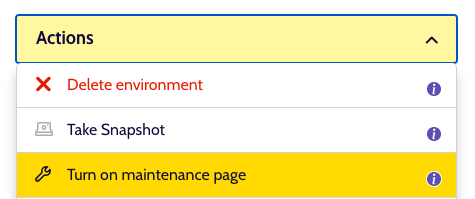
When turning on maintenance, will see a warning appear when the action completes.
The environment is now in maintenance mode and the maintenance page is active.
Keep in mind the status change can take a few minutes.
