Project: Detail
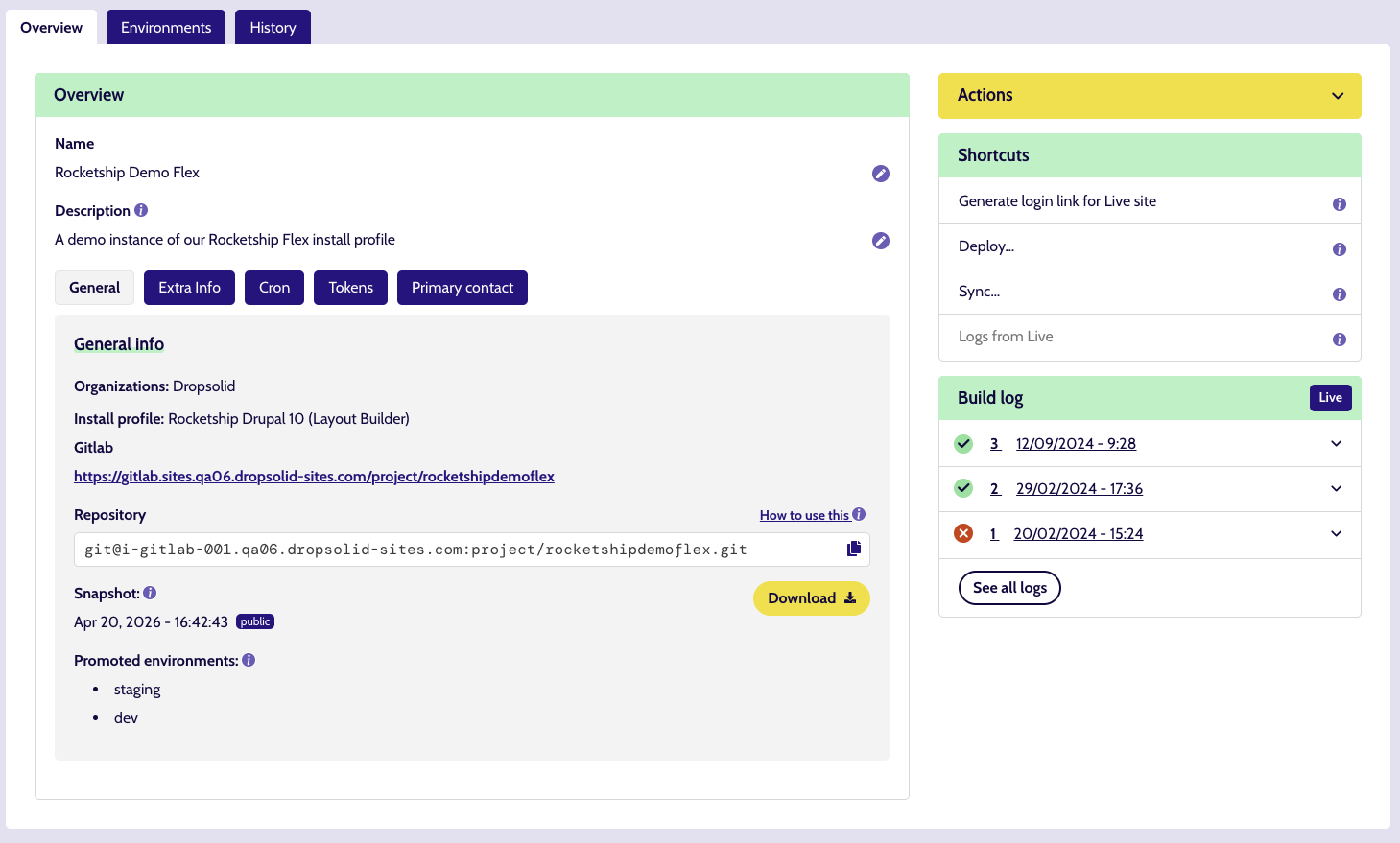
Clicking a Project name (be it in the listing or in the search suggestions), brings you to the Project itself.
There are 3 tabs:
- Overview: the default landing tab, you can see/edit the name and description but there is also a subset of other tabs, all of which aim to give you basic info manage your project, get your project running locally, what organizations own it, …
- Environments: this will show you what environments are active
- History: something like your Notifications History, this displays the tasks that have run that are relevant to this project only.
Besides tabs, there is a sidebar which contains a variety of actions you can perform. Many of these are relevant for specific Environments and will be repeated on individual Environment pages as well. You may not see some of these if your Project has no production environment (Live)
- Actions, they have info-icons that explain the function when you click them
- Delete project (available to Architect role only)
- Take a Snapshot
- Shortcuts: actions you use a lot, they have info-icons that explain the function when you click them
- Generate login link (production only)
- Deploy (environment-specific)
- Sync (environment-specific)
- Logs (eg. Apache, Nginx, FPM, …)
- Backups
- Build log: lists the deploys that have happened (for production environment), with status and some details (arrow button) and links through to a paged overview with more info
General
Your basic info, as mentioned
Extra info
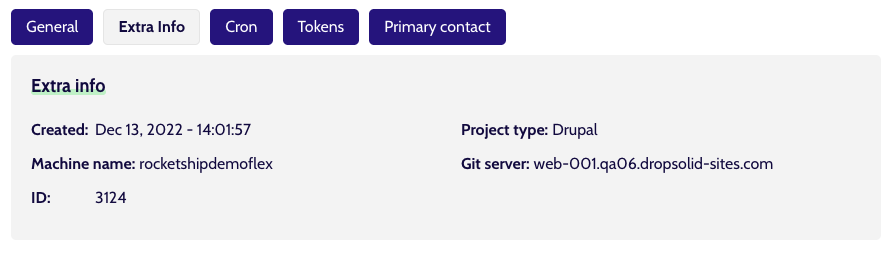
Some basic technical info, like machine name, project type, …
You’ll need that machine name to get your project running locally.
Cron
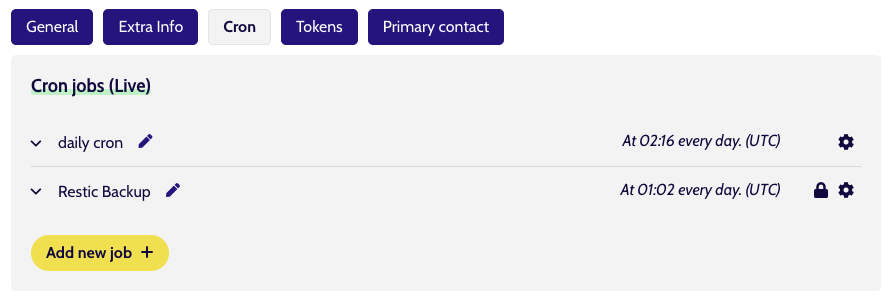
See cron jobs for the production environment (this component is repeated on the production environment detail page as well).
Warning
- Important to note is that users can not edit or delete the content of a production cron job. They need to contact infra for that.
- Also important to note is that new cron jobs will run for the first time when they are added
Tokens
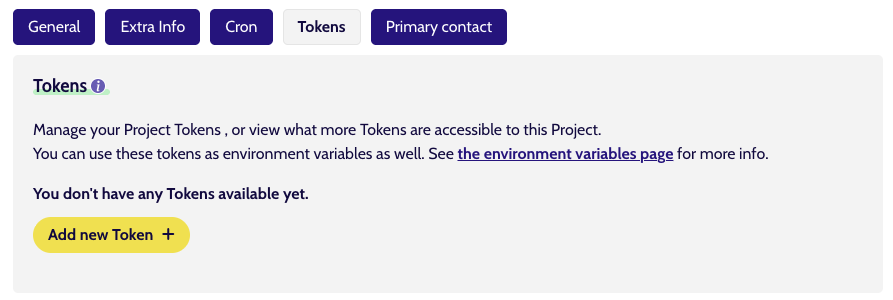
Exactly what Tokens are and how they are used, can be found in the support pages (as linked from the component as well)
Primary contact
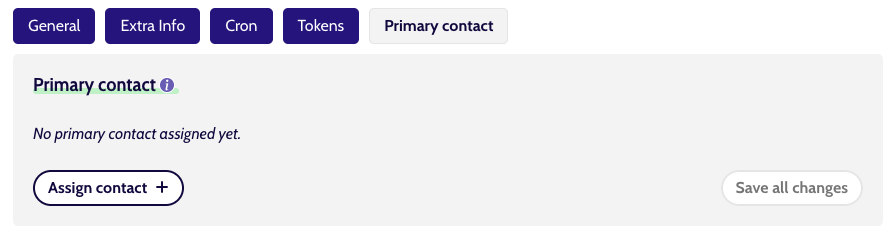
A primary contact is a platform user assigned to a project who should be notified about maintenance, incidents, and important changes. At least one primary contact is required per project.
Assigned users that are members from another organization will be hidden if the current user has no access to that organization.
(Un)Assigning contact members can be done here or on the product detail page, by members with the correct permissions.
Info
When a member is removed from the organization or has their platform subscription cancelled, the primary contact is automatically unassigned.