Switch the MySQL backend of an environment
Development environments can run their database on a different MySQL than the one installed on the server. From the environment's Actions panel you can move the database between the server's native MySQL and the containerised MySQL versions the server offers, for example MySQL 8.0 or 8.4. Use this to test your application on a newer MySQL before it becomes the default.
Info
This is a development feature. Production environments run on the server's native MySQL and do not offer the switch.
What you can switch to
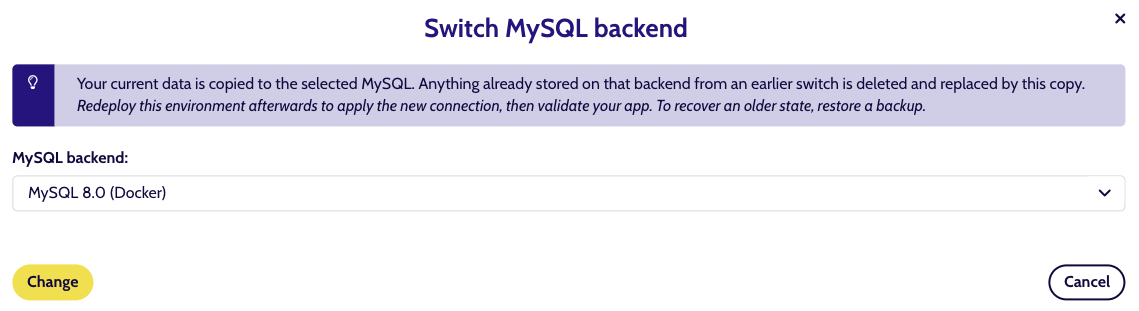
The dropdown lists only the MySQL versions that are actually running on your environment's server, minus the one you are on. A typical development server offers Native (host MySQL), MySQL 8.0 (Docker) and MySQL 8.4 (Docker). You can switch in any direction and as often as you like.
If Switch MySQL backend does not appear in the Actions panel, your server runs no other MySQL version. Contact support if you need one added.
How do I switch
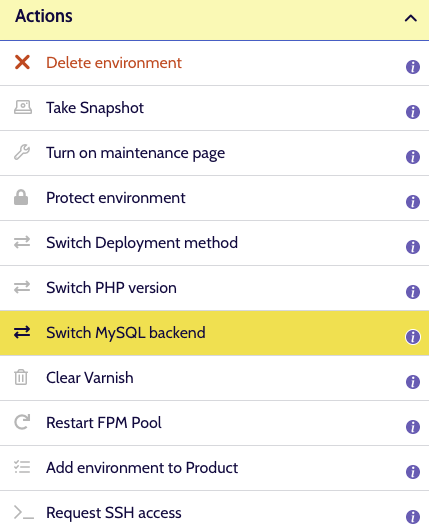
- Open the environment and click Switch MySQL backend in the Actions panel.
- Pick the MySQL version you want to move to.
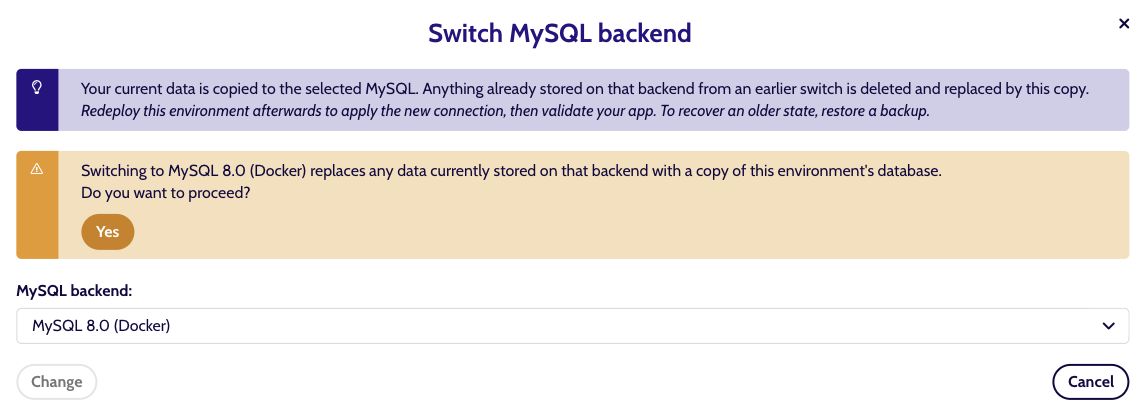
- Confirm. The platform copies the environment's current database to the selected MySQL and verifies the copy table by table. Anything already stored on that backend from an earlier switch is deleted and replaced by this copy.
- Redeploy the environment. The switch moves your data, but your application only starts using the new database once you redeploy.
- Validate your site.
If the job fails, nothing is lost: your environment keeps running on its current backend and you can retry.
Why the redeploy is needed
Each MySQL version listens on its own port, so the connection details change with the switch. A redeploy writes the new details into your environment. Projects that read the database settings from the platform tokens or environment variables pick this up automatically; if your settings.php hard-codes the connection, update it yourself. See Environment variables and Keeping your application code portable between environments.
Switching back
If your application does not behave on the new version, switch back to the previous one and redeploy. That copies your current data back - it is a move, not a snapshot. To recover an older state of your data, restore a backup instead. See Backups for an Environment.
Good to know
- Take a backup before switching if the environment holds work you cannot lose.
- The switch and the redeploy are two separate steps. Between them, your site still serves from the old database.
- Before moving to MySQL 8, check your application for the usual upgrade points:
utf8tables and columns that should beutf8mb4, removed or deprecated SQL syntax, and new reserved words. Validate the site after the redeploy. - Only one database per environment is supported. If your project needs a second one, see How do I connect a second database to an environment.